CPA Networks
 Ad Networks
 Affiliate Programs
 Offer base



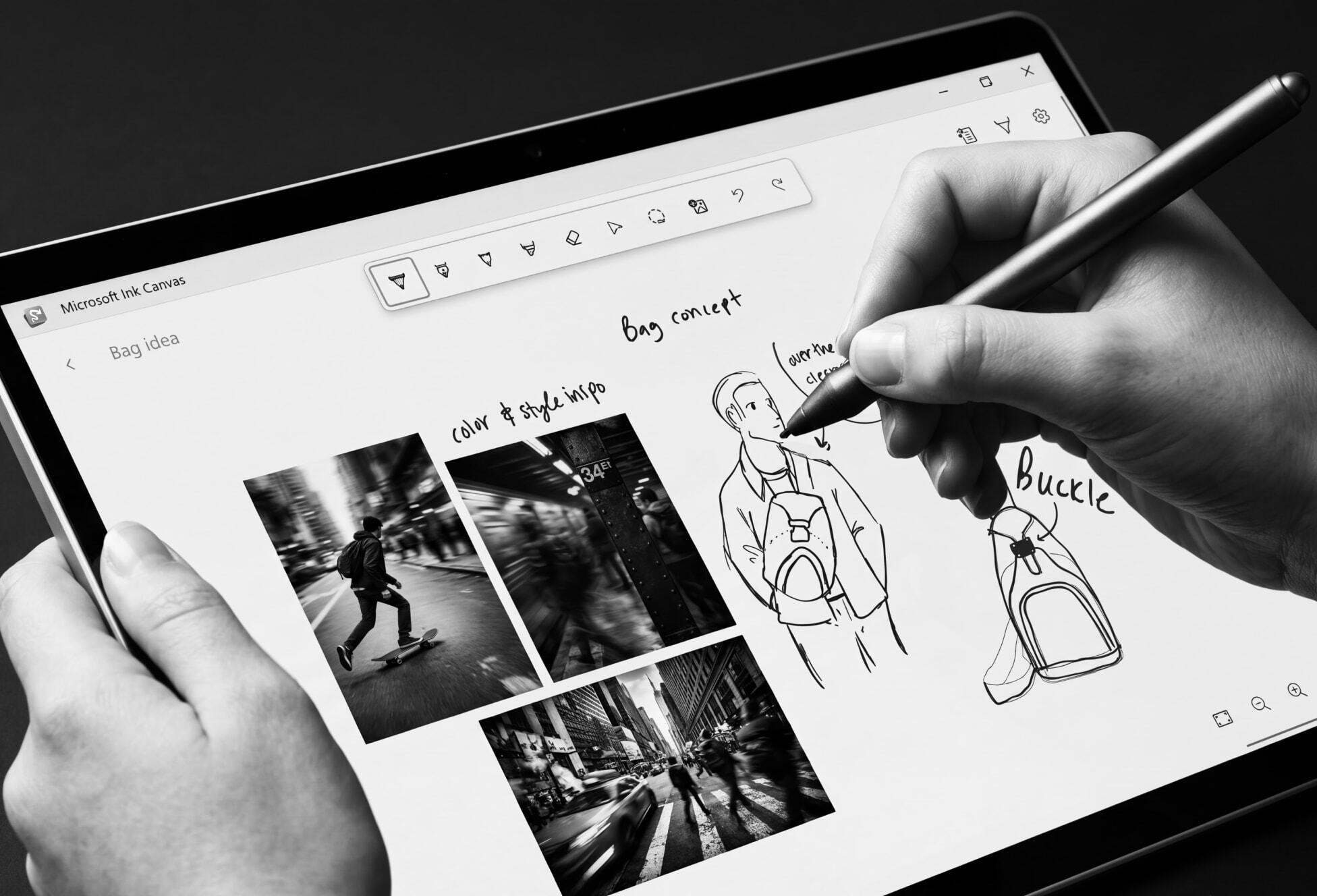
People type https://www.microsoft.com/ink into the browser or search it to find “Microsoft Ink”. In most cases they mean Windows Ink: the pen, handwriting and drawing features built into Windows, plus the ink tools in Microsoft apps such as Word, OneNote and Paint. Microsoft has also released Microsoft Ink Canvas, a separate pen-first app for supported Surface Pro and Windows devices. This complete guide explains what Microsoft Ink is, how to use it, whether you need to sign in, which devices and digital pen models work and what the Microsoft Shared Ink folder on your PC is.
This guide was prepared by the AffRoom team. We write about the tools creators and affiliates use every day, from creatives to ad specs, and a pen-ready PC is one of them.

What Is Microsoft Ink? A Complete Guide for 2026
Microsoft Ink is the common name for digital inking on Windows: writing, drawing and marking up with a digital pen, finger or mouse and having the system treat the strokes as ink. The inking functionality is part of the operating system and of the wider Microsoft ecosystem, not a program you download from https://www.microsoft.com/ink. Because ink is built into Windows, you can write or draw in many inking apps, including Microsoft Paint, and keep the ink strokes editable for later. Paint and the Snipping Tool are pre-installed, so you can start without installing anything.
The term covers five different things, which is why searches get confusing:
| What people mean | What it is | Where you find it |
|---|---|---|
| Windows Ink | Pen features in Windows 10 and 11: pressure and tilt, highlighting, annotation and handwriting-to-text | Settings > Bluetooth & devices > Pen & Windows Ink |
| Ink in Microsoft 365 | The Draw tab with pens, highlighter, ink-to-shape and ink-to-math | Word, Excel, PowerPoint, Outlook and OneNote |
| Microsoft Shared Ink | A system folder with the touch keyboard and handwriting panel components | C:\Program Files\Common Files\microsoft shared\ink |
| Cocreator in Paint | An AI feature that turns a sketch and a text prompt into artwork | Paint on Copilot+ PCs |
| Microsoft Ink Canvas | A new AI-powered, pen-first app for sketching, annotation and summarizing ideas | Supported Surface Pro and Windows devices |
The official Microsoft pen page also refers to the Windows Ink Workspace, the suite of pen tools introduced with Windows 10. It grouped Sticky Notes, Sketchpad and Screen Sketch in one flyout, and in newer versions of Windows the pen menu has taken over that role.

Is Microsoft Ink the Same as Windows Ink in Windows 11?
In practice, yes. “Windows Ink” is the official name of the feature, and “Microsoft Ink” is how most users describe it. Microsoft’s documentation uses Windows Ink for the pen experience and “ink” for the drawing tools inside Office, so both names describe the same ink experience. The only real exception is Microsoft Ink Canvas, which is a separate app. If a third-party site sells or lets you download “Microsoft Ink” as another program, treat it with caution and stick to the Windows settings and official support pages.
Which Devices Support Microsoft Ink? Digital Pen, Inking With Touch and Mouse
Windows Ink is built for touchscreen and pen devices: tablets, 2-in-1 laptops and convertibles, including Surface Pro and Surface Laptop models. An active pen, such as the Surface Pen, is the best input, because the pen tip gives pressure sensitivity and tilt, but you do not need special hardware for every feature. A regular laptop can still use the mouse in Office.
- Pen or stylus: gives full pen input with pressure and tilt. It connects over Bluetooth and must be paired first. Most pens are rechargeable or use a replaceable AAAA battery.
- Touchscreen: inking with touch works in Office, OneNote and Whiteboard, which is handy for quick notes.
- Mouse: works too. The Draw tab in Office supports mouse and touch as well as a digital pen.
- Operating system: Microsoft’s pen page applies to Windows 11 and Windows 10.
Cocreator, the AI-powered drawing feature in Paint, has stricter requirements: it needs a Copilot+ PC, the latest Paint from the Microsoft Store, an internet connection and a Microsoft account.
How to Use Microsoft Ink on Windows: Basic Inking Step by Step
- Pair the pen. Go to Start > Settings > Bluetooth & devices > Add device > Bluetooth. For a Surface Pen, hold the top button for 5 to 7 seconds until the LED flashes white, then select the pen and click Done.
- Open the pen settings. Go to Start > Settings > Bluetooth & devices > Pen & Windows Ink and adjust the pen shortcuts and options.
- Set up the pen menu. It opens as a flyout from the taskbar corner and by default includes OneNote, Whiteboard, Snipping Tool and Journal. You can pin up to four apps and edit the list in the pen menu settings, which is the main customization option for the pen.
- Write and draw in Office. In Word, Excel, PowerPoint and Outlook, open the Draw tab, choose a pencil, pen or highlighter and mark up your document. Every pen is customizable, so you can change the ink color and the stroke size, and the eraser can erase stroke by stroke or point by point. In Word, switch to Print Layout first. In Outlook, insert a drawing canvas.
- Convert ink. Use the convert options to turn ink into shapes, or in Word and PowerPoint to turn handwritten equations into text.
- Try Cocreator. On a Copilot+ PC, open Paint to create digital artwork: sketch on the canvas and add a text prompt. The AI generates artwork in a side pane, and a lower Creativity setting keeps the result closer to your drawing.
The Draw tab turns on automatically on touch-enabled devices. On other PCs, enable it under File > Options > Customize Ribbon.
Ink in Microsoft 365: Draw Tab, Handwriting Recognition and Copilot
Ink in Microsoft 365 goes beyond simple drawing. In OneNote you can write by hand and convert the handwriting to text when you want a typed version, and Copilot in OneNote can now read and summarize inked notes, so a page of handwritten notes can become a short summary or a to-do list. Basic inking works without any extra subscription, but the Copilot features need an eligible Microsoft 365 plan with Copilot access.
Ink annotation is just as useful in Word and PowerPoint. Using the pen, you can circle a number, underline a sentence or add comments in the margin, and the reader sees your ink exactly where you drew it. Microsoft Edge adds ink to PDF files too: its built-in PDF viewer has a Draw tool, so you can mark up a PDF with a pen without printing it.
Microsoft Ink Canvas: The New Pen-First App for 2026
Microsoft Ink Canvas is a pen-first workspace for the moments before an idea becomes a document, an image or a plan. Microsoft describes it as an AI-powered app where you sketch, mark up images and summarize your notes into text directly on the canvas. It is rolling out on supported Surface Pro and Windows devices, so check Microsoft’s support page for the current device list.
You do not need a Microsoft 365 subscription for basic inking in Ink Canvas. Copilot-powered features, such as generating images from a sketch or turning your notes into text, require a Microsoft 365 Personal, Family, Premium or Pro plan. If you already use Windows Ink, Ink Canvas is a good place to start a rough idea, while Office and OneNote remain the place to finish it.
Sign In and Login in https://www.microsoft.com/ink
There is no Microsoft Ink account, so there is nothing to log in to at https://www.microsoft.com/ink. Windows Ink works as a part of Windows, and the pen, the settings and the handwriting panel need no separate sign-in.
Some apps you open with the pen are different. Cocreator in Paint requires a Microsoft account, and apps such as OneNote and Whiteboard may ask you to sign in when you save, sync or share. That sign-in belongs to the app, not to Windows Ink. <!– VERIFY: sign-in behaviour of OneNote and Whiteboard depends on the app version; Cocreator requirement is from Microsoft’s Cocreator page. –>
Be careful with pages that offer a “Microsoft Ink login” or ask for your Microsoft password to “activate” pen features. Windows Ink never needs that, and such pages are a typical phishing pattern. Use only the Windows Settings app and Microsoft’s own support pages.
What Is the Microsoft Shared Ink Folder on My PC? Finding It in File Explorer
Microsoft Shared Ink is a folder that normally sits at C:\Program Files\Common Files\microsoft shared\ink. It holds components of the touch keyboard and handwriting panel. The best known file in it is TabTip.exe, the process behind the Touch Keyboard and Handwriting Panel, which supports handwriting recognition, text input and prediction on touchscreen and pen devices. To see it, open File Explorer and paste the path into the address bar.
Keep these points in mind:
- It is a Windows system component. Do not delete the folder or the file.
- The location matters. Malware can copy the name TabTip.exe. If you find it in C:\Windows or C:\Windows\System32, or Task Manager shows odd behaviour, run a full scan in Windows Security.
- High CPU is a known annoyance. Some users report it on touch devices. Restarting the process or the PC usually solves it, and most users never need to touch the file. <!– VERIFY: folder path and TabTip.exe description come from third-party reference sites (file.net, Windows Report), not from a Microsoft page. –>
Windows Ink Platform for Developers: Ink Toolbar and Sample Code
If you build apps, Microsoft Learn documents the Windows Ink platform in its guide to pen interactions and Windows Ink in Windows apps. Because ink is deeply integrated into Windows, UWP applications can use the same pen, touch and mouse input as the built-in apps.
The platform has a few building blocks. The InkCanvas control gives a UWP app basic inking with a pen, touch or a mouse, and the InkPresenter object renders and manages the ink strokes. The InkToolbar control adds an ink toolbar with pen, highlighter and eraser buttons, which gives your app a ready-made UI for ink. For handwriting recognition, the platform can turn handwriting into text and recognize shapes, and apps can save, load, copy and paste ink strokes.
The same documentation also provides sample code and a short tutorial that walks from basic inking to inking with touch and mouse, an ink toolbar and handwriting recognition. The platform offers plenty of extensibility: you can create custom pens, change the ink color and stroke size and add personalization for each user.
Why Pen Input Can Supercharge Creators and Affiliates in 2026
Ink is a fast way to sketch a creative before you open a design tool, mark up a screenshot for a designer or buyer, or take notes during a call. A few practical uses:
- Creative briefs. Draw a layout on the canvas and check it against the ad specs, for example the Telegram ads sizes and safe zones.
- Feedback. Annotate a draft in Word or PowerPoint, add comments and send it back without retyping them.
- Concepts with AI. A sketch plus a prompt in Cocreator or Ink Canvas is a quick start for visual ideas. For AI video creatives, see our Sora affiliate guide.
- Study notes. Handwritten notes in OneNote help when you work through free affiliate marketing courses.
<!– Embedded block: sora-affiliate-guide –>
Quick Fixes When the Pen or Handwriting Does Not Work
- Check that the pen is paired under Bluetooth & devices and re-pair it if needed.
- Check the battery: replace the AAAA battery or charge the pen.
- Open the pen settings and make sure the shortcuts are set as you expect.
- In Office, confirm that the Draw tab is enabled and that you are in the right view, for example Print Layout in Word.
- Restart the PC, which also resets the touch keyboard and handwriting process.
- Install pending Windows updates. The latest 2026 updates and security updates can fix pen and touch problems, and if the issue stays you can contact Microsoft technical support.
Frequently Asked Questions About Microsoft Ink in 2026
What is Microsoft Ink?
Microsoft Ink is the common name for digital inking on Windows. Officially it is Windows Ink, the pen features of Windows 10 and 11, together with ink tools in Microsoft apps such as Word, PowerPoint, OneNote and Paint. It is not a separate app. The new Microsoft Ink Canvas is a separate app.
How do you use Microsoft Ink on Windows?
Pair your pen under Settings > Bluetooth & devices, then open Pen & Windows Ink to set up shortcuts and the pen menu. Write and draw in apps such as OneNote, Whiteboard and Office through the Draw tab. On a Copilot+ PC you can also sketch in Paint with Cocreator.
Is Microsoft Ink the same as Windows Ink?
Yes, in everyday use. Windows Ink is the official name of the feature, and people searching for Microsoft Ink usually mean the same pen and handwriting tools. The Pen & Windows Ink settings page is where you manage them.
Do you need to sign in to use Microsoft Ink?
No. Windows Ink needs no separate login, and there is no account at https://www.microsoft.com/ink. Some apps ask you to sign in, such as Cocreator in Paint, which requires a Microsoft account.
Which devices support Microsoft Ink?
Touchscreen devices and pen-enabled Windows 10 and 11 PCs: tablets, 2-in-1 laptops and convertibles, including Surface. A Bluetooth pen gives the best result, and Office ink also works with touch or a mouse. Cocreator needs a Copilot+ PC.
What is the Microsoft Shared Ink folder on my PC?
It is a system folder, usually at C:\Program Files\Common Files\microsoft shared\ink, with components of the touch keyboard and handwriting panel, including TabTip.exe. Leave it in place. If the same file name appears in C:\Windows or System32, run a Windows Security scan.
Do you need a Microsoft 365 subscription to use Ink Canvas and its Copilot features?
Not for basic inking. Inking and the other non-AI features of Ink Canvas work without a Microsoft 365 subscription, while the Copilot features need a Microsoft 365 Personal, Family, Premium or Pro plan.
Can you use Windows Ink with touch, a mouse or a digital pen?
Yes. To use a digital pen, pair it over Bluetooth first. Touch and mouse input work in Office and OneNote too, although a pen gives the best pressure and tilt.
Conclusion: Supercharge Your Windows 11 Workflow With Microsoft Ink in 2026
Microsoft Ink is Windows Ink: a set of pen, touch and handwriting features that works without a separate download or login. Pair a pen, open the pen settings, use the Draw tab in Office, try Cocreator on a Copilot+ PC and look at Microsoft Ink Canvas if you like to sketch ideas before you write them. Treat any “Microsoft Ink login” page as suspicious.
Want more practical guides for creators and affiliates? On AffRoom you can compare ad networks, read honest reviews and grab exclusive promo codes for your first campaigns.